

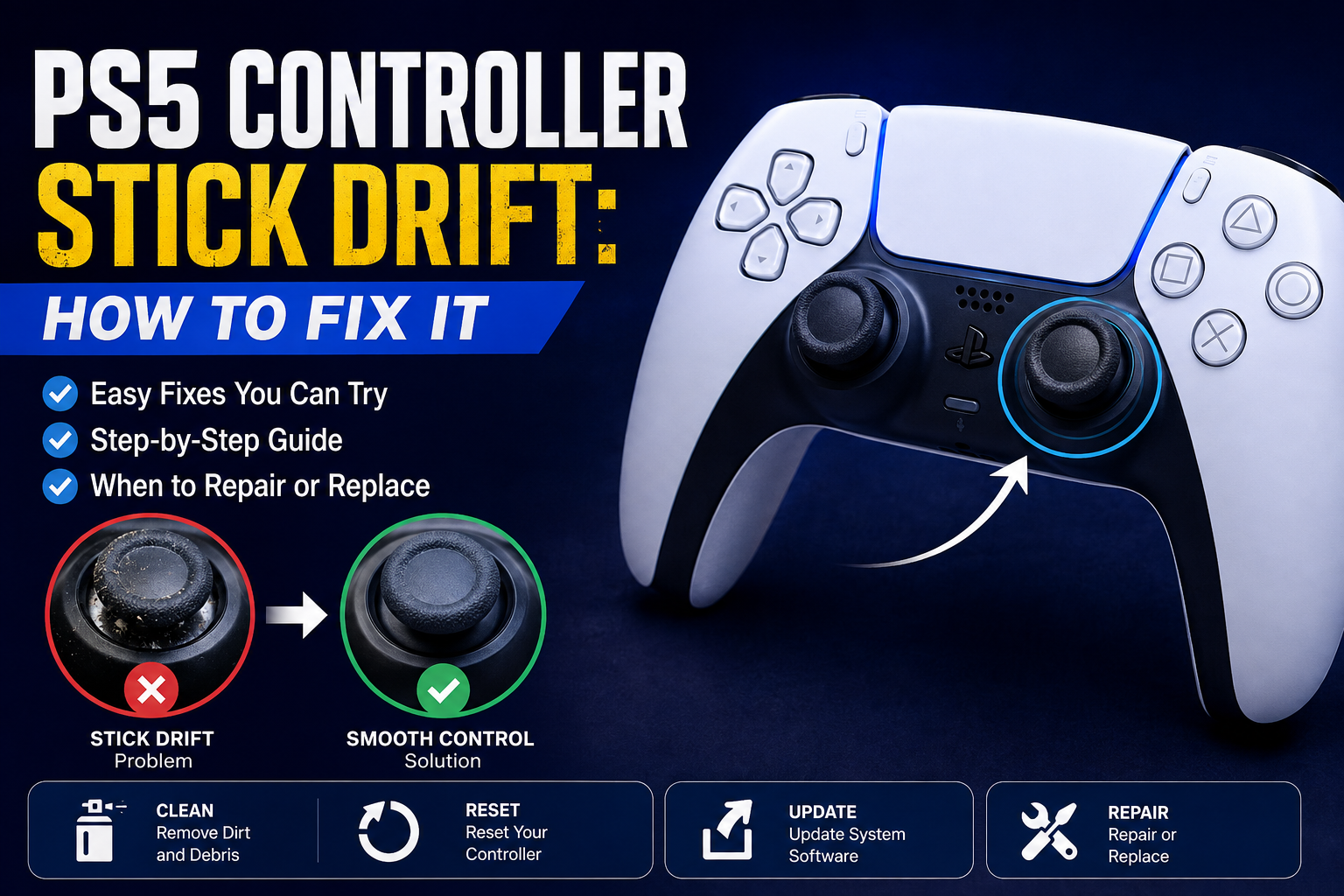
Few things are more frustrating than watching your character slowly walk across the screen while you’re not touching the controller. That’s PS5 controller stick drift, and it’s one of the most common problems DualSense owners can run into.
The good news is that you don’t always need to buy a new controller. In many cases, you can troubleshoot the problem yourself, clean the analog stick, reset the controller, or determine whether the hardware needs repair.
In this guide, we’ll show you how to fix PS5 controller stick drift, how to test for it, what causes it, and what you can do if the problem keeps coming back.
What Is PS5 Controller Stick Drift?
PS5 controller stick drift happens when an analog stick registers movement even though you aren’t touching it.
For example, your character might:
- Move slowly to one side.
- Look around without you moving the right stick.
- Scroll through menus by itself.
- Move the camera unexpectedly.
- Continue moving after you release the analog stick.
Stick drift can affect either the left or right analog stick.
The left stick is particularly noticeable in games where it controls character movement, while right-stick drift can make the camera constantly move.
How to Check for PS5 Controller Stick Drift
Before trying to fix anything, make sure drift is actually the problem.
Start a game that uses the affected analog stick and leave the controller untouched.
If your character moves or the camera slowly turns without any input, you may have stick drift.
You can also test the controller outside a game by navigating through the PS5 menus. If the selection moves on its own, that’s another sign that the analog stick is registering unwanted input.
For a more precise test, you can use a reputable online controller testing tool on a computer or compatible device. These tools can show whether the stick is registering movement while it’s supposed to be centered.
How to Fix PS5 Controller Stick Drift
There isn’t one guaranteed solution because stick drift can be caused by dirt, wear, calibration issues or damaged components.
Try these fixes in order, starting with the simplest.
1. Restart Your PS5
Start with the easiest solution.
Turn off your PS5 completely, wait a few seconds and turn it back on.
Then test the controller again.
A temporary software or connection issue can sometimes make controller input behave strangely. If the drift immediately returns, continue with the next steps.
2. Reset the DualSense Controller
The DualSense has a small reset button on the back of the controller.
You’ll need something thin enough to press it, such as a SIM ejector tool or the end of a suitable pin.
To reset your PS5 controller:
- Turn off your PS5.
- Disconnect the controller from the console.
- Find the small reset button on the back of the DualSense.
- Press and hold it for several seconds.
- Connect the controller to the PS5 using a USB cable.
- Press the PS button.
Test the analog stick again after reconnecting.
A controller reset won’t repair physically worn components, but it’s a worthwhile troubleshooting step before attempting anything more complicated.
3. Clean Around the Analog Stick
Dust and debris can interfere with the analog stick mechanism.
Before cleaning, turn off the controller.
Move the affected analog stick slowly in different directions and inspect the area around its base. If you can see dirt or debris, carefully clean around the opening.
Use compressed air carefully around the stick mechanism rather than flooding the controller with liquid.
Avoid pouring household cleaners, water or other liquids directly into the controller.
If the drift is caused by contamination rather than physical wear, cleaning may improve the problem.
4. Update Your PS5 and Controller
Software problems aren’t the most common cause of stick drift, but keeping your console and controller updated eliminates another possible source of trouble.
Check your PS5 for available system software updates.
You can also check the controller settings for available DualSense device software updates.
After updating, restart the PS5 and test the controller again.
5. Reconnect the Controller
If your DualSense is connected wirelessly, reconnecting it can help rule out a temporary connection problem.
Connect the controller to the PS5 using a USB cable and press the PS button.
Once it’s paired again, test the analog stick.
If the controller works normally when connected by cable but behaves differently wirelessly, the problem may not be traditional stick drift.
6. Test Another Game
Before assuming the controller is broken, try another game.
Some games have their own controller settings and dead-zone options. A very small dead zone can make minor analog-stick movement much more noticeable.
If the problem happens in only one game, check that game’s controller settings.
If the same unwanted movement appears across multiple games and the PS5 menus, the controller itself is more likely to be responsible.
Can You Fix PS5 Controller Stick Drift Permanently?
Sometimes.
If dirt or a temporary software problem is responsible, cleaning or resetting the controller may solve the issue.
However, persistent drift can indicate that the analog-stick components are worn or damaged.
In that situation, cleaning won’t necessarily provide a permanent fix.
The DualSense analog sticks contain mechanical components that can wear over time. If the controller has significant physical wear, professional repair or replacement may be the more practical option.
How to Get Rid of Stick Drift on a PS5 Controller
If you’re trying to get rid of stick drift quickly, follow this order:
- Restart the PS5.
- Reset the DualSense controller.
- Clean around the affected analog stick.
- Update the PS5 system software.
- Update the controller software.
- Reconnect the controller with USB.
- Test the controller in another game.
- Check whether the game has a dead-zone setting.
- If the drift continues, consider professional repair.
- Replace the controller if the hardware is significantly worn.
This approach helps you identify whether you’re dealing with a temporary problem or genuine hardware wear.
What Causes PS5 Controller Stick Drift?
Several things can contribute to stick drift.
Normal Wear
Analog sticks are mechanical components, so they can wear with repeated use.
The more frequently a controller is used, the more likely its internal components are eventually to show signs of wear.
Dust and Debris
Small particles can enter the area around the analog stick and interfere with its movement or sensors.
Physical Damage
Dropping the controller or applying excessive force to the analog sticks can damage internal components.
Heavy Use
Competitive gaming sessions can put significant repeated movement through the analog sticks.
Game Settings
Some games use adjustable dead zones. If the dead-zone setting is very low, minor stick movement may become more noticeable.
How to Prevent PS5 Controller Stick Drift
You can’t completely eliminate the risk of stick drift, but you can reduce unnecessary wear.
Keep the controller clean and avoid eating directly over it.
Don’t aggressively push the analog sticks beyond their normal range.
Store the DualSense somewhere dry and relatively dust-free.
Avoid throwing or dropping the controller.
If a game offers dead-zone settings, don’t automatically set them to the lowest possible value. A slightly larger dead zone can make minor unwanted stick movement less noticeable.
Can You Fix Stick Drift on a PS5 Controller Yourself?
Basic troubleshooting and cleaning are reasonable things to try yourself.
Hardware repair is different.
Replacing internal analog-stick components requires opening the controller and working with small electronic components. If you aren’t comfortable disassembling electronics, it’s better to use a professional repair service.
Opening the controller can also create additional problems if components are damaged during the repair.
For a controller that’s still covered by an applicable warranty or support policy, check the manufacturer’s support options before opening it yourself.
How Much Does PS5 Controller Stick Drift Repair Cost?
The cost depends on where you live, the repair shop and the type of repair required.
A simple cleaning service can cost much less than replacing an analog-stick assembly or buying a replacement controller.
Before paying for a repair, compare the repair price with the current cost of a new DualSense.
If the controller is old and the repair quote is close to the price of a replacement, replacing it may make more sense.
Should You Replace a PS5 Controller With Stick Drift?
Not immediately.
If the drift is minor, try the troubleshooting steps above first.
Replacement makes more sense when:
- Drift continues after cleaning and resetting.
- The controller has suffered physical damage.
- Multiple buttons or sticks are malfunctioning.
- Repair costs are close to the price of a new controller.
- The controller has been heavily used for several years.
If only one controller is affected, testing another DualSense on the same PS5 can also help confirm whether the console or controller is responsible.
What PS5 Controller Has No Stick Drift?
No traditional analog-stick controller should be described as completely immune to stick drift.
Stick mechanisms can experience wear, regardless of the brand or model.
If avoiding future drift is your main concern, look for controllers that use Hall effect or other contactless sensing technology in their analog sticks. These designs work differently from traditional potentiometer-based sticks and can reduce certain types of mechanical wear.
However, check the specific controller’s features before buying because not every third-party PS5-compatible controller uses Hall effect sticks.
PS5 Controller Stick Drift FAQ
How do I fix PS5 controller stick drift?
Start by restarting the PS5, resetting the DualSense, cleaning around the analog stick, updating the console and controller, and testing another game. If drift continues, the analog-stick hardware may be worn.
Can you fix stick drift on a PS5 controller?
Yes, sometimes. Cleaning and resetting can solve some cases, while persistent hardware-related drift may require professional repair or controller replacement.
How do you fix stick drift on a PS5 controller?
Try restarting and resetting the controller first. Then clean around the affected stick, update the controller, reconnect it and test it across multiple games.
How do I get rid of stick drift on my PS5 controller?
The best approach is to troubleshoot the controller in stages. Clean it, reset it, update it and test it. If the drift remains, consider repair or replacement.
What causes stick drift on a PS5 controller?
Common causes include normal analog-stick wear, dust or debris, physical damage and heavy use. Some games can also make minor stick movement more noticeable through their dead-zone settings.
How do I check PS5 controller stick drift?
Leave the analog stick untouched while navigating the PS5 interface or playing a game. If the character, camera or menu selection moves without input, the controller may have stick drift.
Can resetting a PS5 controller fix stick drift?
A reset can resolve certain temporary controller or connection problems, but it won’t repair a physically worn or damaged analog-stick component.
How do I stop stick drift on a PS5 controller?
Keep the controller clean, avoid excessive force on the analog sticks and use sensible dead-zone settings in games that provide them. If drift has already developed, troubleshoot it early rather than continuing to use a severely drifting stick.
Bottom Line
PS5 controller stick drift doesn’t automatically mean you need a new controller.
Start with the simple fixes: restart the console, reset the DualSense, clean around the analog stick, update the software and test the controller in multiple games.
If the stick continues registering movement without input, the internal components may be worn. At that point, compare the cost of professional repair with a replacement controller.
For most players, the important thing is not to jump straight into opening the controller. Try the safe troubleshooting steps first, identify the cause, and only then decide whether repair or replacement is worth it.
