

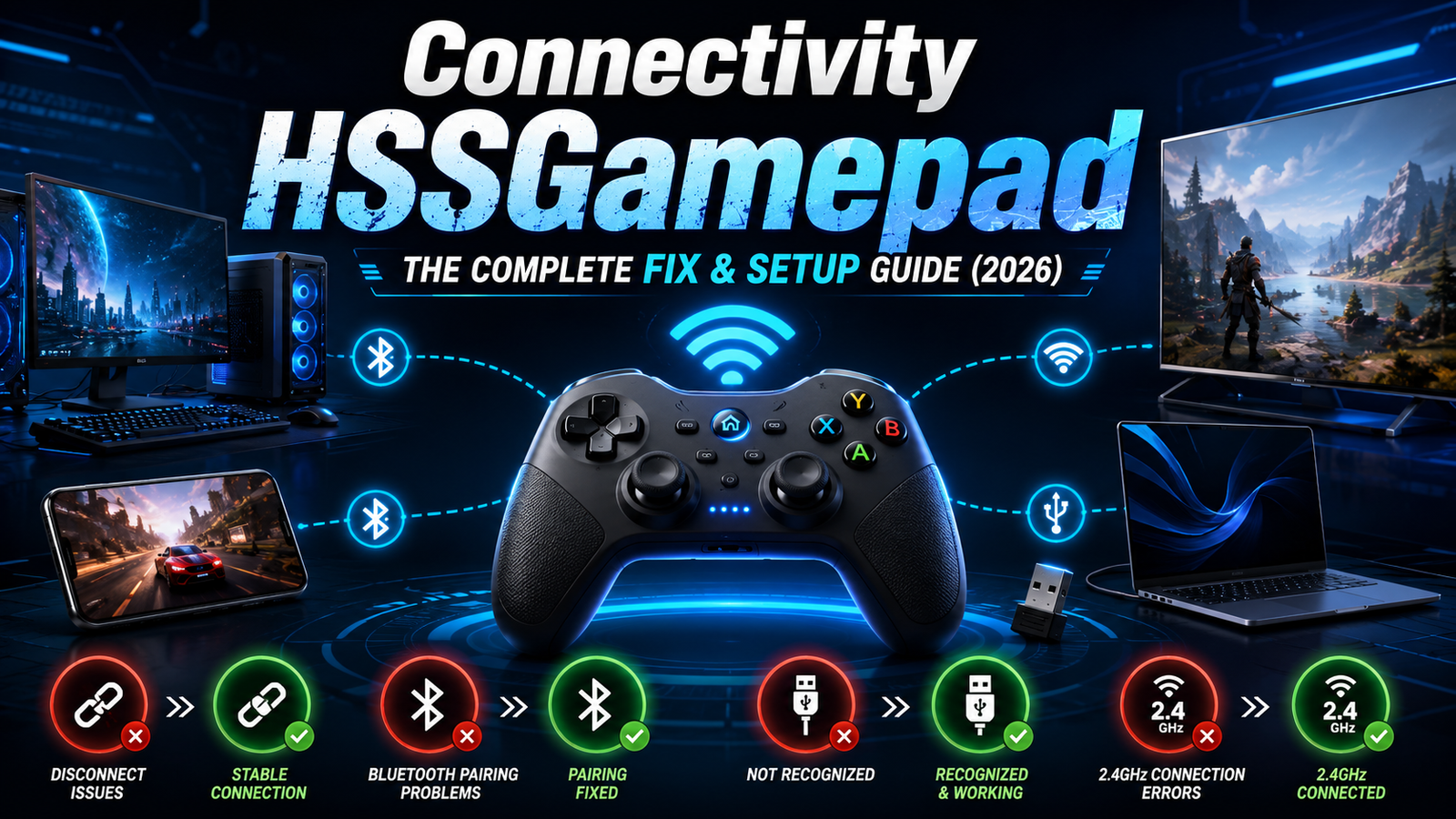
Introduction to Connectivity HSSGamepad
An HSS Gamepad is meant to give you a smooth wireless gaming experience — but the moment the connection drops mid-match, it becomes one of the most annoying things a gamer can deal with. Maybe the controller won’t pair at all, maybe it disconnects randomly every few minutes, or maybe your device simply doesn’t recognize it. Whatever the symptom, this guide walks through every fix in plain, non-technical language.
This is meant to be the only guide you need. It covers all three connection types — Bluetooth, 2.4 GHz wireless, and USB — across every major platform (Android, PC, Smart TV, and iOS), and it goes past the obvious basics to cover causes that most manuals never mention.
What Is the HSS Gamepad?
The HSS Gamepad is a multi-mode wireless controller designed to work across phones, PCs, smart TVs, and tablets without needing a different controller for each device. It typically supports three ways to connect: Bluetooth for phones and TVs, a 2.4 GHz USB dongle for low-latency PC and console-style play, and a wired USB connection as a fallback when wireless isn’t reliable.
That flexibility is exactly why connectivity problems are so common — a controller that can operate in three different modes has three different sets of things that can go wrong, and a lot of user confusion comes from being in the wrong mode without realizing it.
Common HSS Gamepad Connectivity Problems (and Why They Happen)
Most connectivity complaints fall into a handful of repeatable patterns:
- Won’t enter pairing mode — usually caused by holding the wrong button combination or not holding it long enough.
- Pairs but won’t connect — often a leftover pairing record on either the controller or the device that’s conflicting with a fresh pairing attempt.
- Connects, then drops randomly — commonly linked to low battery, Bluetooth interference, or aggressive power-saving settings on the host device.
- Connects but buttons don’t respond correctly — almost always a mode mismatch, where the controller is in a mode the device or game doesn’t expect.
- Not recognized over USB or dongle — typically a driver, port, or cable issue rather than a controller fault.
Knowing which category your issue falls into makes it much faster to jump to the right fix instead of trying everything at random.
Step-by-Step Fixes for Every Connectivity Issue
Fix 1: Check and Charge the Battery First
Before anything else, plug the controller in for at least 15–20 minutes. Bluetooth controllers behave erratically at low battery — dropping connections, refusing to pair, or responding sluggishly — well before the battery is actually empty. This single step resolves a surprising share of “random disconnect” complaints.
Fix 2: Activate Pairing Mode Correctly
Pairing mode is usually triggered by holding a specific button combination (commonly the Home/Mode button plus one shoulder button) until the status LED starts flashing rapidly rather than staying solid or blinking slowly. Holding it for too short a time is the most common reason pairing mode never actually activates.
Fix 3: The “Forget and Re-Pair” Reset (Fixes Most Bluetooth Drops)
Go into your device’s Bluetooth settings, find the HSS Gamepad entry, and select “Forget” or “Remove device” — don’t just turn Bluetooth off and on. Power the controller off completely, then back on into pairing mode, and pair it again as if for the first time. This clears out corrupted pairing data that causes the majority of persistent Bluetooth drop issues.
Fix 4: Fix the “Wrong Mode” Problem (Connects but Doesn’t Work)
If the controller connects but buttons feel mapped incorrectly or don’t register, check which input mode it’s set to (commonly toggled with a Mode or X/D button combo). Different modes emulate different controller standards, and a game or device expecting one standard won’t correctly interpret input from another.
Fix 5: Fix the 2.4 GHz Dongle Connection (PC and TV Users)
Make sure the dongle is plugged directly into a USB port rather than through a hub, since hubs can introduce enough latency or power inconsistency to cause dropouts. If the connection is unstable, try a different USB port — ideally one on the back of a desktop PC, which tends to have a more stable power supply than front-panel ports.
Fix 6: Fix USB Wired Connection Issues
Wired issues are almost always the cable, not the controller. Try a different USB cable, preferably one you know supports data transfer and not just charging, since some cheaper cables are power-only. If the controller still isn’t recognized, test it on a different port or a different computer to isolate whether the problem is the cable, the port, or the controller itself.
Fix 7: Fix Android Battery Optimization Killing the Connection
On many Android devices, aggressive battery optimization can quietly disconnect Bluetooth accessories to save power. Go into your device’s battery settings, find the app or system Bluetooth process involved, and set it to “unrestricted” or exclude it from optimization. This is one of the most overlooked causes of random mid-session disconnects on phones.
Fix 8: Reduce Bluetooth Interference
Wi-Fi routers, USB 3.0 ports, microwaves, and other Bluetooth devices nearby can all interfere with the 2.4 GHz band that both Bluetooth and the wireless dongle use. Moving closer to the device you’re connecting to, and away from routers or other wireless electronics, often resolves intermittent drops that otherwise look like a hardware fault.
Fix 9: Update Drivers and Firmware
Outdated drivers on PC, or outdated firmware on the controller itself, can cause compatibility issues that look like connectivity problems but aren’t. Check the manufacturer’s official support page for the latest driver and firmware versions rather than relying on generic Bluetooth drivers, and install any available updates before troubleshooting further.
Fix 10: Hard Reset the HSS Gamepad
If nothing else has worked, a full hard reset (often done by holding a small reset button, sometimes recessed, for 10+ seconds) restores the controller to factory settings and clears any corrupted internal state. This is a last resort but resolves stubborn issues that survive re-pairing and firmware updates.
Platform-Specific Quick Guides
Android
Enable Bluetooth, put the controller into pairing mode, and select it from the device list. If it pairs but doesn’t work in a specific game, check that the game supports external controllers and that the controller is set to the correct input mode.
Windows PC
For the 2.4 GHz dongle, plug it into a rear USB port and let Windows auto-install drivers; for Bluetooth, pair through Windows Settings > Devices. If Windows shows the controller as connected but games don’t detect it, check Device Manager for a driver conflict or duplicate entry.
Smart TV (Android TV / Fire TV)
Most smart TVs support Bluetooth pairing through the remote’s settings menu. Because TVs often have weaker Bluetooth range than phones or PCs, keep the controller within a few feet during initial pairing, even if you plan to sit farther away afterward.
iOS / iPhone
Pairing works the same way as Android — through Bluetooth settings — but iOS is stricter about supported controller profiles. If the controller pairs but isn’t recognized in a game, confirm the controller is in the mode intended for iOS/MFi-style compatibility rather than a generic or Android-specific mode.
How to Prevent HSS Gamepad Connectivity Issues
- Charge the controller regularly rather than letting it run flat, since low-battery behavior is the single most common cause of “random” issues.
- Stick to one connection mode per device rather than switching frequently, which reduces the chance of leftover pairing conflicts.
- Keep firmware and drivers updated instead of only troubleshooting after something breaks.
- Store the dongle safely when not in use — a lost 2.4 GHz dongle is a common reason people assume the whole controller is defective.
- Avoid pairing the same controller to too many devices at once, since some Bluetooth controllers have a limited number of stored pairing slots.
When to Contact HSS Gamepad Support
If you’ve worked through the fixes above and the controller still won’t connect reliably, it’s worth reaching out to official support rather than continuing to troubleshoot blindly — especially if the issue started suddenly with no changes on your end, if the controller shows physical damage, or if the battery no longer holds a charge at all. At that point, the issue is more likely hardware failure than a settings problem, and support can advise on repair or replacement options.
Frequently Asked Questions
Why does my HSS Gamepad keep disconnecting even after re-pairing? This usually points to battery, interference, or a power-saving setting on the host device rather than the pairing itself — work through Fixes 1, 7, and 8 before assuming the controller is faulty.
Can I use the HSS Gamepad on multiple devices? Yes, most versions support switching between a few paired devices, but each device needs to be paired individually, and some models limit how many pairings can be stored at once.
Why does my controller connect but not respond to any buttons? This is almost always a mode mismatch — check that the controller is set to the input mode your specific device or game expects.
Summary
Most HSS Gamepad connectivity problems trace back to a small set of causes: low battery, leftover pairing data, the wrong input mode, or interference on the 2.4 GHz band. Working through the fixes in order — starting with the simplest (battery, pairing mode) before moving to the more involved ones (hard reset, driver updates) — resolves the overwhelming majority of issues without needing to contact support. Keep the controller charged, stick to one mode per device, and update firmware occasionally, and most connectivity problems won’t come back.
