

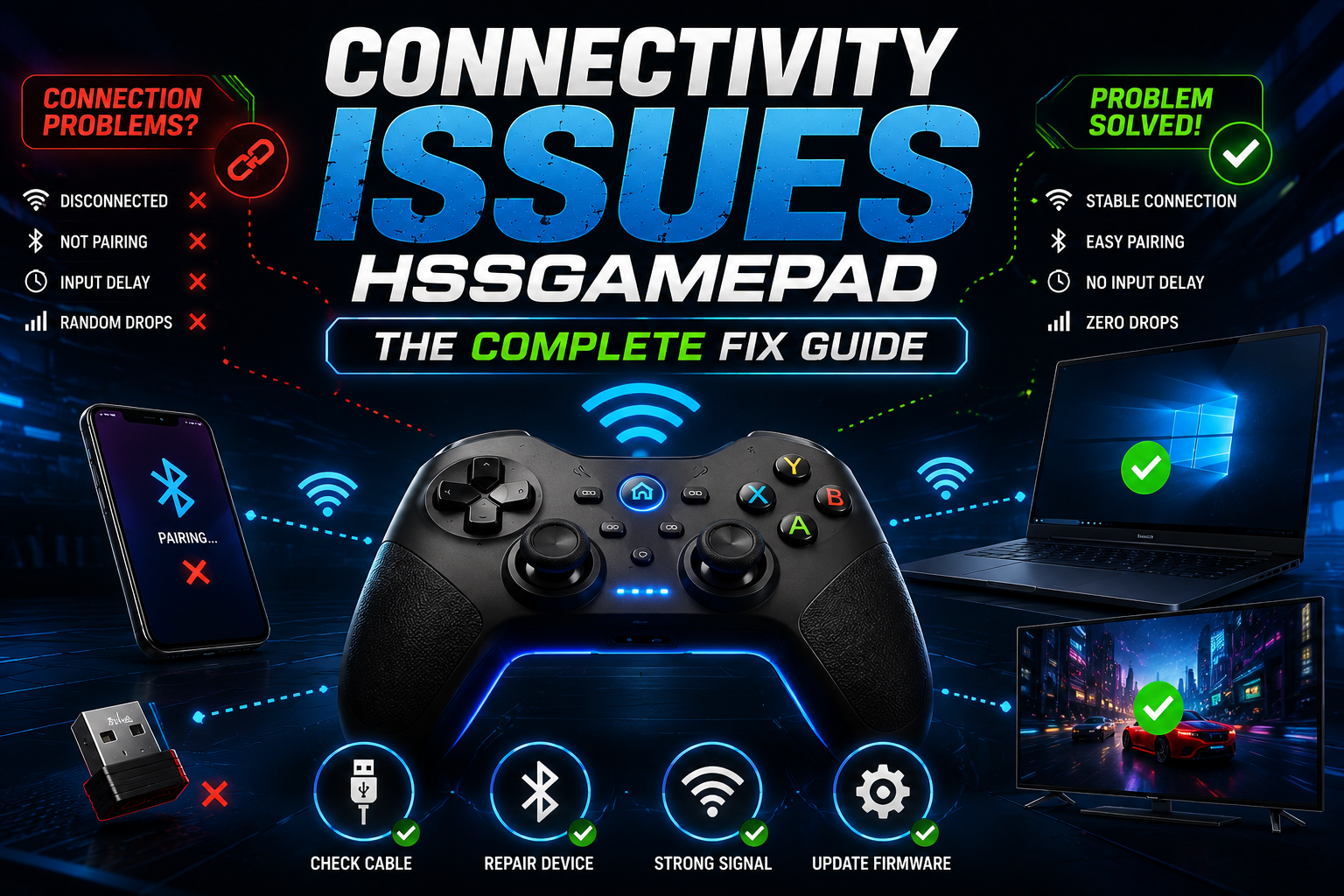
Connectivity Issues HSSGamepad problems usually come down to one of a handful of root causes — battery, pairing mode, wrong input mode, or interference. This guide walks through every one of them, organized so you can jump straight to the fix that matches your specific symptom instead of reading the whole thing top to bottom.
What Is the HSSGamepad? (Quick Overview)
The HSSGamepad is a multi-mode wireless controller built to work across phones, PCs, smart TVs, and tablets. It supports three connection types — Bluetooth, a 2.4GHz USB dongle, and wired USB — which makes it flexible, but also means there are three separate sets of things that can go wrong. Most Connectivity Issues HSSGamepad complaints trace back to whichever mode is currently in use, so identifying the mode is the first real diagnostic step.
Quick Diagnosis – Find Your Problem Fast
Instead of guessing, match your symptom to the likely cause below and jump straight to that fix.
| Symptom | Likely Cause | Jump To |
|---|---|---|
| Controller won’t enter pairing mode | Wrong button combo or held too briefly | Fixing Bluetooth Pairing Issues |
| Pairs but doesn’t appear as connected | Leftover pairing data conflict | Step 3 – Still Not Showing Up |
| Connects, then drops every few minutes | Low battery or interference | Fixing Wireless Disconnection Problems |
| Connects but buttons don’t respond | Wrong input mode (D-Input vs X-Input) | D-Input vs X-Input section |
| Not recognized over USB | Cable or driver issue | Fixing USB Connection Issues |
| Dongle plugged in but nothing happens | Dongle not synced or in wrong port | Fixing 2.4GHz Wireless Dongle Issues |
| Noticeable delay between press and action | Input lag from mode or interference | Fixing Input Lag |
Understanding HSSGamepad Connectivity Issues
Before jumping into fixes, it helps to know why these issues happen in the first place. Wireless controllers depend on a stable handshake between the controller and the host device, and that handshake can be disrupted at several points: a weak or fluctuating battery, corrupted pairing data left over from a previous session, radio interference from other 2.4GHz devices, or a mismatch between the input mode the controller is broadcasting and the mode the game or OS expects. Most Connectivity Issues HSSGamepad reports fall cleanly into one of these categories, which is why a quick diagnosis step saves far more time than trial-and-error resets.
Fixing Bluetooth Pairing Issues
Step 1 – Put the Gamepad in Pairing Mode (The Right Way)
Hold the Home/Mode button together with a shoulder button until the LED shifts from a slow blink to a fast, rapid flash — that’s the actual signal that pairing mode is active. A common mistake is releasing the buttons the moment the LED starts blinking at all, before it reaches the fast-flash state that indicates discoverability.
Step 2 – Pair It on Your Device
Open Bluetooth settings on your phone, PC, or TV, and select the HSSGamepad from the list of available devices. Confirm any on-screen pairing code if prompted. The controller should show as “Connected” rather than just “Paired” — those are different states, and some devices show a controller as paired without it being actively connected.
Step 3 – Still Not Showing Up? Try These Fixes
If the controller doesn’t appear in the list at all, forget any previous HSSGamepad entry in Bluetooth settings first, power the controller fully off, then back into pairing mode, and try again as a completely fresh pairing. Also check that no other device currently has an active Bluetooth connection to the controller, since most Bluetooth controllers can only maintain one active connection at a time even if paired to several devices.
Fixing USB Connection Issues (PC)
Common USB Problems and Fixes
| Problem | Fix |
|---|---|
| Controller not detected at all | Try a different USB cable — many cheaper cables are charge-only and carry no data |
| Detected but not working in-game | Check Windows Device Manager for a driver conflict or duplicate entry |
| Works in some ports, not others | Use a rear USB port on desktop PCs; front-panel and hub ports are less consistent |
| Intermittent disconnects over USB | Disable USB selective suspend in Windows power settings |
Fixing 2.4GHz Wireless Dongle Issues
Setting Up the Dongle Correctly
Plug the dongle directly into a USB port on the device itself rather than through a hub or extension cable, both of which can introduce enough signal or power inconsistency to cause dropouts. On PC, allow a few seconds after plugging it in for the driver to initialize before powering on the controller.
2.4GHz Dongle Not Working?
Confirm the dongle and controller are actually synced to each other — most 2.4GHz dongles ship pre-synced, but a factory reset or firmware update can break that pairing, requiring a manual re-sync (usually a button press on the dongle followed by a button press on the controller within a few seconds of each other).
D-Input vs X-Input – The Hidden Problem Nobody Talks About
This is one of the most common causes of “it connects but doesn’t work” reports, and most troubleshooting guides skip it entirely. Controllers can broadcast in different input standards — X-Input (the Xbox-style standard most modern PC games expect) or D-Input (an older, more generic standard). If the HSSGamepad is set to D-Input but a game only supports X-Input, the controller will show as connected in Windows while doing nothing inside the game itself. Most HSSGamepad models switch between modes with a dedicated button combo — check the manual for the exact combination, since it varies by firmware revision, and try switching modes if a specific game isn’t responding despite an otherwise successful connection.
Fixing Wireless Disconnection Problems
1. Check Your Battery Level First
Low battery causes unstable, intermittent behavior well before the controller fully dies — random drops are often a battery symptom before they’re anything else. Charge for at least 15–20 minutes before troubleshooting further.
2. Android Battery Optimization (Commonly Missed)
Android’s battery optimization can silently disconnect Bluetooth accessories to save power. Find the relevant Bluetooth or controller-related process in your battery settings and set it to unrestricted rather than optimized.
3. Reduce Wireless Interference
Wi-Fi routers, USB 3.0 ports, and other 2.4GHz devices can interfere with both Bluetooth and dongle connections. Move closer to the connected device and away from routers or other wireless electronics if drops happen at a specific location or time.
4. Re-Pair the Connection Fresh
If the connection has been unstable for a while, a clean forget-and-re-pair (see Step 3 above) clears out any corrupted pairing data that gradual firmware updates or repeated disconnects can leave behind.
Fixing Input Lag
Noticeable delay between pressing a button and seeing the action on screen is usually one of three things: Bluetooth interference (switch to the 2.4GHz dongle if lag is Bluetooth-specific), the wrong input mode adding translation overhead, or a background app polling the controller unnecessarily. Closing unused controller-related background software and testing with the dongle instead of Bluetooth isolates the cause quickly.
Platform-Specific Troubleshooting
Windows 10 / 11
Use the 2.4GHz dongle for the most reliable, lowest-latency connection. For Bluetooth, pair through Settings > Devices > Bluetooth, and check Device Manager if the controller shows connected but unresponsive in-game — a duplicate or conflicting driver entry is the usual cause.
Android
Pair through Bluetooth settings, and check that the specific game supports external controllers before assuming the connection itself failed. Battery optimization (covered above) is the most common Android-specific issue.
iOS
iOS is stricter about which controller profiles it recognizes. If the HSSGamepad pairs but a game doesn’t detect it, confirm the controller is set to an MFi-compatible mode rather than a generic or Android-oriented mode.
Smart TV
TVs often have shorter Bluetooth range than phones or PCs. Keep the controller close during initial pairing even if you intend to sit farther away once it’s connected, since range issues are far more common during the handshake than during ongoing use.
Updating HSSGamepad Firmware and Drivers
Outdated firmware or PC drivers can produce behavior that looks exactly like a connectivity fault but isn’t. Check the official HSSGamepad support page for the current firmware version rather than relying on generic Bluetooth or HID drivers, and update before assuming a hardware problem.
Preventive Tips: Stop Connectivity Issues Before They Start
- Charge the controller on a regular schedule instead of running it to empty
- Stick to one connection mode per device to avoid leftover pairing conflicts
- Check for firmware updates every few months, not just when something breaks
- Store the 2.4GHz dongle somewhere safe — a lost dongle is a common reason people assume the whole controller has failed
- Avoid pairing to more devices than necessary, since some models cap the number of stored Bluetooth pairings
When to Consider a Hardware Issue
If the fixes above don’t resolve things, and especially if the problem appeared suddenly with no changes on your end, the battery won’t hold a charge at all, or the controller shows visible physical damage, the issue is more likely hardware failure than a settings problem. At that point, contacting official support for repair or replacement is faster than continued troubleshooting.
Frequently Asked Questions
Why does my HSSGamepad disconnect only in certain games? That’s a strong sign of a D-Input vs X-Input mismatch rather than a true connectivity problem — the controller is connected, but the game isn’t reading its signal correctly.
Is the 2.4GHz dongle more reliable than Bluetooth? Generally yes, especially for PC gaming, since it avoids some of the interference and range limitations that affect Bluetooth, and typically has lower input lag.
Can I fix Connectivity Issues HSSGamepad problems without contacting support? Most cases resolve with battery, pairing, or mode fixes covered in this guide — hardware failure is a smaller share of reported issues than people assume.
Summary – Your Fastest Path to a Working Connection
Most Connectivity Issues HSSGamepad problems come from one of four places: battery, pairing data, input mode, or interference. Use the quick diagnosis table to identify your symptom, work through the matching fix, and check firmware if the problem persists. Genuine hardware failure is the least common cause — work through the software-side fixes first, and most connections come back stable without ever needing a replacement.
