

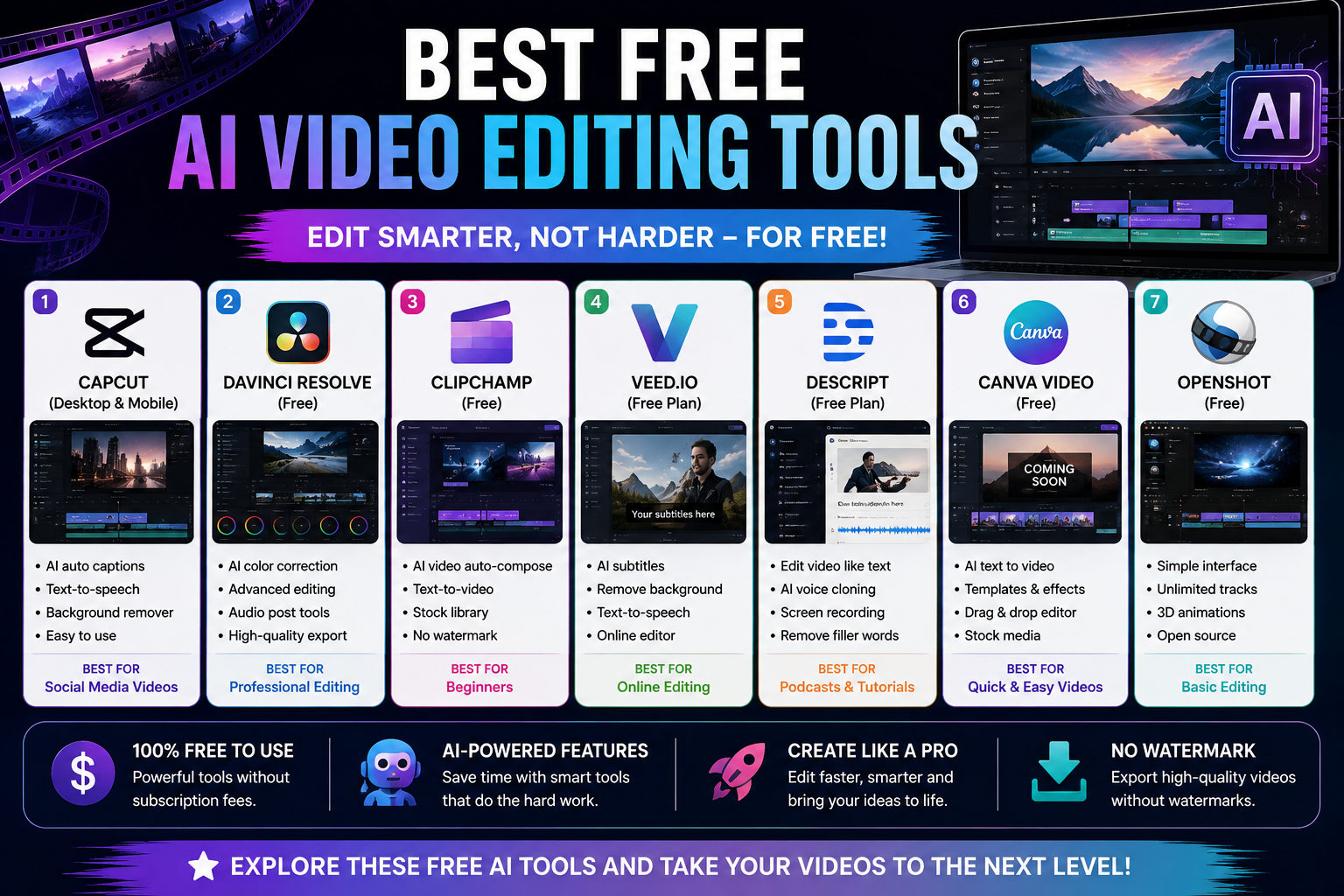
Best video editing software 2026 picks change every year, and finding the right one for your needs isn’t as simple as it sounds — everyone’s use case is different. Some people are editing YouTube vlogs, others wedding films, others short-form Reels, and some just want to trim a few clips together for family memories. The “best” software really depends on what you’re trying to do, how much time you want to spend learning it, and how much you’re willing to spend.
In this guide, we’ll walk through the top video editing tools of 2026 — from completely free, beginner-friendly apps to professional-grade software used in film and TV production. Each entry includes pros, cons, and who it’s best suited for, so you can skip the trial-and-error and pick the right one the first time.
How to Choose the Best Video Editing Software 2026 Has to Offer
Before you commit to any editor, check these basics:
- Import options — how easily footage comes in from your phone, camera, or drone
- Interface — beginner-friendly or built for advanced/professional workflows
- File compatibility — how many formats it supports (4K, ProRes, RAW, etc.)
- AI tools and effects — auto color correction, noise removal, subtitles, auto-reframe, transitions
- Export options — resolution and ready-made presets for platforms like YouTube, Instagram, TikTok
- System requirements — some editors are heavy on RAM and GPU, others run fine on modest laptops
- Pricing model — one-time purchase vs. subscription vs. free with paid upgrades
With that out of the way, here are our picks for the best video editing software of 2026, from beginner level through to professional.
1. CapCut
CapCut has become one of the most widely used editors in the last few years, especially among social media creators. It’s available on both mobile and desktop, and even the free version is quite capable. What sets it apart is how quickly you can go from raw footage to a finished, platform-ready video using its massive library of templates and trending effects.
The auto-captioning feature alone saves creators hours of manual subtitle work, and its AI tools (background removal, auto-reframe for different aspect ratios) are genuinely useful rather than gimmicky. Because it was built with mobile-first creators in mind, exporting directly to TikTok, Instagram Reels, or YouTube Shorts dimensions is effortless.
Pros: Templates, auto-captions, trending effects, quick export presets for Reels/TikTok/Shorts, free to start. Cons: Not as strong for advanced color grading or multi-cam editing; some premium effects are locked behind a subscription.
Best for: Beginners, content creators, social media pages.
Read the Full CapCut Review | Try CapCut for Yourself
2. DaVinci Resolve
If you’re serious about editing or want to learn color grading, there’s really no substitute for DaVinci Resolve. Even the free version offers Hollywood-level color tools that are used on real feature films. It combines editing, color correction, visual effects (Fusion), and audio mixing (Fairlight) into a single application, which is rare at this price point — especially since the base version costs nothing.
The trade-off is complexity. Resolve wasn’t designed with absolute beginners in mind, and the interface has a lot going on across its different pages (Cut, Edit, Fusion, Color, Fairlight, Deliver). It also tends to be more demanding on your computer’s hardware, particularly the GPU, so older or budget laptops may struggle with smooth playback on higher resolutions.
Pros: Professional-grade color grading, a genuinely powerful free tier, built-in audio mixing and VFX tools. Cons: Steeper learning curve, can be demanding on lower-spec laptops.
Best for: Serious hobbyists, colorists, prosumer/pro editors.
Read the Full DaVinci Resolve Review | Download DaVinci Resolve
3. Adobe Premiere Pro
Adobe Premiere Pro is the industry standard — used across TV, film, and YouTube production at a professional level. If you ever plan to work with other editors, freelancers, or studios, chances are they’re already using Premiere, which makes collaboration much easier.
Its biggest strength is how well it integrates with the rest of the Adobe ecosystem. If you’re already using Photoshop for thumbnails or After Effects for motion graphics, moving projects between them is seamless. The plugin ecosystem is also massive, meaning there’s almost always a tool or extension for whatever specific task you’re trying to accomplish.
The downside is cost and complexity. Premiere Pro is subscription-only, and while Adobe periodically bundles it with other Creative Cloud apps, the ongoing monthly cost adds up compared to one-time-purchase alternatives. New users can also find the sheer number of panels and options overwhelming at first.
Pros: Industry-wide support, a huge plugin ecosystem, powerful multi-cam editing, tight integration with other Adobe apps. Cons: Subscription-based (monthly cost), can feel overwhelming for beginners.
Best for: Professionals and freelancers working within the Adobe ecosystem.
Read the Full Premiere Pro Review | Try Premiere Pro for Yourself
4. Wondershare Filmora
Filmora is a great fit for beginners who still want professional-looking results without a steep learning curve. The interface stays simple and approachable while the feature set has quietly grown quite advanced over the past few years — including a strong lineup of AI tools.
Filmora’s AI features include auto reframe for different platforms, one-click background removal, AI-powered color matching, and even AI-generated voiceovers in some versions. For someone starting out, this means you get access to techniques that would otherwise take hours to learn manually.
It’s not going to replace DaVinci Resolve or Premiere Pro for serious professional color work or heavy VFX, but for creating polished YouTube videos, vlogs, or small business marketing content, it more than gets the job done.
Pros: Easy learning curve, good AI features (auto reframe, background removal), affordable one-time or subscription pricing. Cons: Not deep enough for pro-level color grading or VFX work.
Best for: Beginners who want room to grow into intermediate-level editing.
Read the Full Filmora Review | Try Filmora for Yourself
5. CyberLink PowerDirector
PowerDirector consistently stands out for one thing above all else: rendering speed. Even with heavily compressed 4K footage, it renders and scrubs through the timeline noticeably faster than most competitors, which matters a lot if you’re editing long-form content regularly.
Its AI-driven tools have also matured well over recent versions, covering everything from motion tracking to automatic color matching and object removal. It also handles 360-degree footage end-to-end, which is a niche but valuable feature for anyone working with action cameras or immersive video.
The interface can feel a little cluttered to brand-new users, since there’s a lot packed into the workspace, but most people get comfortable with it after a project or two.
Pros: Fast render times, solid AI features, support for 360-degree video, strong overall value. Cons: Interface can feel a bit cluttered for new users.
Best for: Anyone who wants both speed and AI-powered tools.
Read the Full PowerDirector Review | Try PowerDirector for Yourself
6. Movavi Video Editor
Movavi has quietly become a strong contender in the “easy to use” category, giving Filmora real competition. Its interface is built around straightforward drag-and-drop editing, and it supports a wide range of input and output formats without requiring the user to understand codecs or containers.
Beyond basic cutting and trimming, Movavi includes color correction, stabilization tools, and a solid library of transitions and filters. It’s a good pick for anyone who wants to add titles, subtitles, and background music to home videos or simple promotional content without wading through a complicated interface.
Pros: Very beginner-friendly, wide format support, built-in stabilization and color correction. Cons: Limited advanced features compared to prosumer-level software.
Best for: Absolute beginners who want quick, polished results.
Read the Full Movavi Review | Try Movavi for Yourself
7. Final Cut Pro (Mac)
For Mac users, Final Cut Pro remains one of the best options available, particularly because of its tight optimization with Apple hardware. Editors report noticeably smoother playback and faster export times on Apple Silicon Macs compared to running cross-platform software like Premiere Pro on the same machine.
Unlike most professional editors, Final Cut Pro is a one-time purchase rather than a subscription, which can make it more cost-effective over the long run for Mac-only users. Its magnetic timeline is also a different (and for many editors, faster) way of working compared to the traditional track-based timelines found in Premiere or Resolve.
The obvious limitation is platform lock-in — it’s Mac only, so if you ever need to collaborate with Windows-based editors or switch platforms, you’ll need to plan around that.
Pros: One-time purchase, excellent performance on Apple Silicon, fast export times. Cons: Mac-only, magnetic timeline has its own learning curve if you’re coming from other editors.
Best for: Mac users who want a professional, one-time-purchase editor.
Read the Full Final Cut Pro Review | Try Final Cut Pro for Yourself
8. Shotcut (Free & Open Source)
If your budget is genuinely zero, Shotcut is one of the better free, open-source options available. It supports a wide range of formats natively, includes a reasonable set of filters and transitions, and is actively maintained by its community.
It won’t compete with DaVinci Resolve’s free tier in terms of polish or advanced tools, and the interface feels more utilitarian than modern commercial software. But for students, hobbyists, or anyone just testing the waters of video editing before committing money to a paid tool, it’s a solid starting point.
Pros: Completely free, open-source, no watermarks, wide format support. Cons: Interface feels dated, fewer AI-powered tools compared to commercial options.
Best for: Students and hobbyists on a zero budget.
Read the Full Shotcut Review | Download Shotcut
Quick Comparison Table
| Software | Skill Level | Pricing Type | Standout Feature |
|---|---|---|---|
| CapCut | Beginner | Free/Freemium | Social media templates |
| DaVinci Resolve | Intermediate–Pro | Free/Paid Studio | Color grading |
| Premiere Pro | Pro | Subscription | Industry standard |
| Filmora | Beginner–Intermediate | One-time/Subscription | Easy AI tools |
| PowerDirector | Intermediate | One-time/Subscription | Rendering speed |
| Movavi | Beginner | One-time/Subscription | Simplicity |
| Final Cut Pro | Intermediate–Pro | One-time (Mac only) | Apple Silicon performance |
| Shotcut | Beginner | Free | Zero cost, open source |
Which One Should You Actually Pick?
Instead of just picking the “best” software overall, it helps to think about your specific situation:
- You post daily on TikTok or Instagram: Go with CapCut — the templates and auto-captioning alone will save you hours every week.
- You want to learn real color grading: Start with the free version of DaVinci Resolve and grow into it over time.
- You’re a freelancer working with agencies or studios: Premiere Pro is worth the subscription simply because everyone else uses it too.
- You’re a total beginner who wants a gentle learning curve: Filmora or Movavi will get you comfortable fastest.
- You edit long, heavy 4K projects often: PowerDirector’s rendering speed will save you real time.
- You’re on a Mac and want a one-time purchase: Final Cut Pro is hard to beat.
- You don’t want to spend a cent: Shotcut is the most practical free option outside of Resolve.
Frequently Asked Questions
Do I need a powerful computer to edit video? Not necessarily. Lightweight editors like CapCut, Filmora, and Movavi run comfortably on average laptops. Programs like DaVinci Resolve and Premiere Pro benefit significantly from a dedicated GPU and more RAM, especially when working with 4K footage.
Is free software good enough for YouTube or social media? Yes, in most cases. CapCut and Shotcut are both capable of producing professional-looking results for YouTube, TikTok, and Instagram without spending anything. Paid software mainly adds convenience, extra AI features, and faster workflows rather than unlocking capabilities that are strictly necessary for most creators.
Should I choose a subscription or a one-time purchase? If you’re just starting out and unsure how long you’ll stick with video editing, a free tool or a low-cost subscription is the safer choice. Once you know you’ll be editing long-term, a one-time purchase (like Final Cut Pro or PowerDirector’s perpetual license option) often works out cheaper over a few years.
Can I switch software later without losing my skills? Mostly, yes. The core concepts — timelines, cuts, transitions, keyframes, color correction — carry over between programs. The interface will look different, but the underlying logic of editing stays largely the same, so switching later isn’t as painful as it might seem.
Key Takeaways
- CapCut or Filmora are the best starting points for beginners.
- If you want to learn color grading, try the DaVinci Resolve free version.
- For professional/industry work, Premiere Pro offers the widest compatibility.
- If speed and AI tools matter most, check out PowerDirector.
- Mac users looking for a one-time purchase should consider Final Cut Pro.
- On a zero budget, Shotcut is a solid free, open-source option.
- Always try the free trial or free version first — performance varies from system to system, so test it on your own footage and laptop before buying.
