

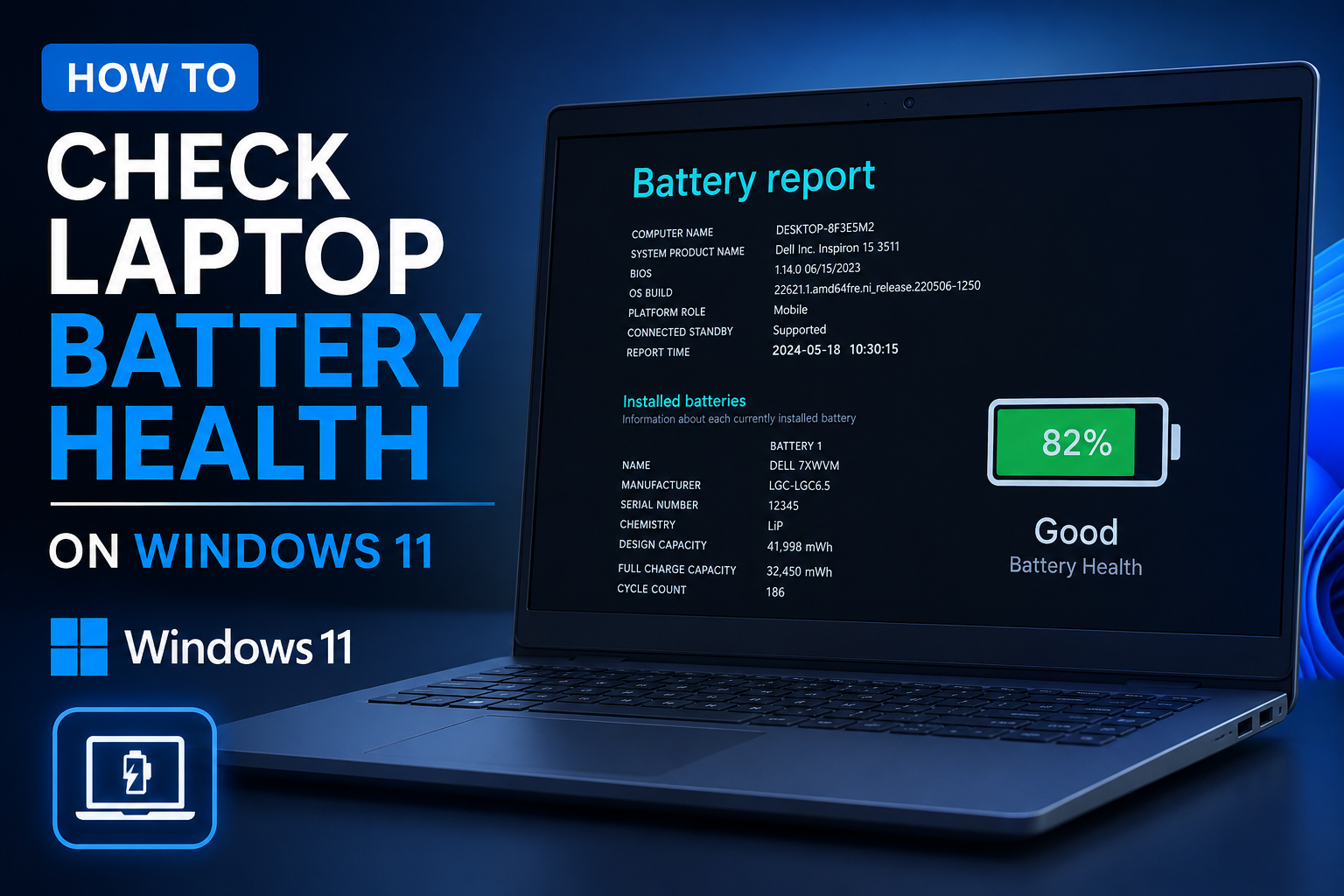
Your laptop battery won’t last forever. Even if your laptop still performs perfectly, its battery gradually loses some of its ability to hold a charge as it ages. If you’ve noticed that your laptop needs to be plugged in more often than it used to, checking its battery health can tell you whether normal battery wear is behind the shorter runtime.
The good news is that you don’t need a third-party app to perform a laptop battery health check. Windows 11 has a built-in Battery Report that shows useful information including the battery’s original design capacity, current full-charge capacity, recent usage and, on some laptops, the battery cycle count.
Here’s how to check laptop battery health on Windows 11, understand what the numbers mean and decide whether your battery needs attention.
Quick Answer
The easiest way to check laptop battery health on Windows 11 is to generate a Battery Report.
Open Command Prompt as administrator and enter:
powercfg /batteryreport
Press Enter, and Windows will create an HTML battery report. Open the file in your browser and look for Design Capacity and Full Charge Capacity under the Installed batteries section.
You can estimate battery health with this formula:
Battery Health = Full Charge Capacity ÷ Design Capacity × 100
For example, if the original Design Capacity was 60,000 mWh and the current Full Charge Capacity is 48,000 mWh:
48,000 ÷ 60,000 × 100 = 80%
That means the battery currently holds about 80% of the capacity it had when new.
How to Check Laptop Battery Health Using the Windows Battery Report
Windows doesn’t display every battery-health detail in the standard Settings app, but generating a detailed report takes only a few steps.
Open Command Prompt as Administrator
Click Start and search for Command Prompt.
Right-click Command Prompt in the search results and select Run as administrator.
If Windows asks for permission through User Account Control, select Yes.
Run the Battery Report Command
In the Command Prompt window, type:
powercfg /batteryreport
Then press Enter.
Windows will generate the report and display a message telling you where the HTML file has been saved.
The powercfg /batteryreport command is a built-in Windows power-management tool that creates a battery usage report.
Open the Battery Report
Go to the location shown in Command Prompt and find the HTML battery report.
Double-click the file and it should open in your default web browser.
You can also choose a specific location for the report by using:
powercfg /batteryreport /output "C:\battery-report.html"
This saves the report as battery-report.html directly on the C: drive.
How to Read Your Laptop Battery Report
The Battery Report contains a lot of information, but you don’t need to understand every section to check battery health.
Start with Installed batteries.
Depending on your laptop, you may see:
- Battery type
- Design Capacity
- Full Charge Capacity
- Cycle Count
The two most important numbers for estimating battery health are Design Capacity and Full Charge Capacity.
Design Capacity vs. Full Charge Capacity
Design Capacity is the amount of energy the battery was designed to hold when it was new.
For example:
Design Capacity: 60,000 mWh
Full Charge Capacity shows approximately how much energy the battery can currently store when fully charged.
For example:
Full Charge Capacity: 48,000 mWh
The difference between these two numbers gives you an idea of how much capacity the battery has lost through normal use and aging.
A lower Full Charge Capacity is expected as a lithium-ion battery gets older. The important question is whether the remaining capacity still provides enough runtime for your needs.
What Is Battery Cycle Count?
The Battery Report may also show a Cycle Count.
A battery cycle generally represents using an amount of energy equivalent to the battery’s full capacity. It doesn’t necessarily mean draining the laptop from 100% to 0% in one session.
For example, if you use 50% of the battery today and another 50% tomorrow, those two periods can add up to approximately one full cycle.
Not every Windows laptop reports cycle count through the Battery Report. If the field isn’t available, that doesn’t necessarily indicate a battery problem. Your laptop manufacturer may provide cycle information through its own diagnostic or system-management software.
Other Battery Information to Check
The Battery Report can also include information about recent usage, battery usage history and battery-life estimates.
These sections can be useful if you’re trying to understand why your laptop’s runtime has changed.
For example, if your battery capacity looks reasonable but the laptop is still draining unusually quickly, recent usage information may help point toward a power-hungry application or workload.
How to Calculate Laptop Battery Health
Windows doesn’t always show a simple battery-health percentage, but you can calculate an estimate using the capacity figures in the report.
Use:
Battery Health (%) = Full Charge Capacity ÷ Design Capacity × 100
Suppose your laptop shows:
- Design Capacity: 60,000 mWh
- Full Charge Capacity: 48,000 mWh
The calculation is:
48,000 ÷ 60,000 × 100 = 80%
So the battery has approximately 80% of its original capacity remaining.
This is an estimate rather than a complete diagnosis. Battery health can also be affected by temperature, calibration, battery age and the way the laptop is used.
What Is a Good Battery Health Percentage?
There isn’t a universal percentage at which every laptop battery should be replaced. As a general guide, here’s what different battery-health levels usually mean:
| Battery health | What it means |
|---|---|
| 90–100% | Excellent condition with very little capacity loss |
| 80–89% | Normal wear and generally still healthy |
| 70–79% | Noticeable degradation may begin to affect runtime |
| Below 70% | Significant capacity loss; consider replacement if runtime is poor |
These figures shouldn’t be treated as strict rules. A battery at 75% health may still provide several hours of useful runtime, while a smaller battery with the same health percentage could feel much less practical.
Your actual battery life matters just as much as the percentage.
Why Is My Laptop Battery Draining So Fast?
A laptop that drains quickly doesn’t automatically have a damaged battery.
Power consumption can increase for several reasons, including a bright display, background applications, demanding workloads and performance-focused power settings.
Screen Brightness
A brighter display generally uses more power. Lowering the brightness when maximum brightness isn’t necessary is one of the simplest ways to extend runtime.
Background Apps
Apps running in the background can continue using processor, memory and network resources even when you’re not actively using them.
Open Settings > System > Power & battery to review power-related settings and available battery-saving options.
Power and Performance Settings
Performance-focused settings can allow the processor and other components to use more energy.
If you’re working away from an outlet, switching to a more balanced or power-efficient setting can help extend battery life.
Demanding Applications
Gaming, video editing, 3D rendering and other intensive workloads can drain a battery much faster than web browsing or writing documents.
If your laptop suddenly lasts much less than it used to while performing the same tasks, battery degradation becomes a more likely explanation.
How to Improve Laptop Battery Life
You can’t stop a lithium-ion battery from aging, but you can reduce unnecessary power consumption and avoid conditions that can accelerate battery wear.
Keep Your Laptop Cool
Excessive heat can contribute to battery degradation.
Avoid using your laptop on soft surfaces such as beds, blankets or cushions where ventilation openings can become blocked. Keep the vents clear and give the laptop enough space for air to circulate.
Use Windows Battery-Saving Features
Open Settings > System > Power & battery and review the available power and battery settings.
Windows provides options designed to reduce power consumption when you’re running on battery.
Reduce Screen Brightness
If your display is brighter than necessary, lowering the brightness can provide an easy battery-life improvement.
You can also configure Windows to turn the screen off sooner when you’re away from the laptop.
Close Unused Apps
Once you’re finished with a demanding application, close it rather than leaving it running in the background.
This is especially useful for applications that frequently use the processor, graphics hardware or network connection.
Avoid Regularly Draining the Battery to Zero
Modern lithium-ion batteries don’t need to be repeatedly drained to 0% to maintain their capacity.
You can occasionally test actual battery runtime if you need to, but regularly running the battery completely flat isn’t necessary.
Use Battery-Care Features
Many newer laptops include battery-management features that can limit charging or optimize charging when the laptop spends most of its time connected to power.
If your manufacturer provides a battery-care or charging-optimization mode, check its recommendations and consider enabling it when appropriate.
Should You Keep Your Laptop Plugged In All the Time?
Keeping a laptop connected to a charger isn’t automatically harmful. However, spending long periods at a very high charge level can contribute to battery aging.
If you primarily use your laptop at a desk, check whether its manufacturer provides a charging limit or battery-preservation mode.
These features can be particularly useful if you rarely need to use the laptop away from an outlet.
When Should You Replace a Laptop Battery?
Battery replacement makes sense when battery degradation starts affecting the way you use your laptop.
Battery Life Has Dropped Significantly
If your laptop once lasted most of a workday but now needs charging after only an hour or two under similar conditions, the battery may have significantly degraded.
Full Charge Capacity Has Fallen
Compare Full Charge Capacity with Design Capacity in the Battery Report.
A substantial difference indicates that the battery has lost a meaningful amount of its original storage capacity.
However, don’t judge the battery by this number alone. Consider how long it actually lasts during your normal workload.
Your Laptop Shuts Down Unexpectedly
Unexpected shutdowns while Windows still shows a significant amount of battery remaining can indicate a battery or power-management problem.
If this happens repeatedly, generate a Battery Report and, if available, run your laptop manufacturer’s hardware diagnostics.
The Battery Is Swollen
A swollen battery is a much more serious warning sign.
If the laptop’s chassis is bulging, the touchpad is lifting, the case is separating or you can see other signs that the battery has expanded, stop using the laptop and seek professional service.
Do not puncture, press on or attempt to remove a visibly swollen battery yourself. An expanded lithium-ion battery can present a safety risk.
Should You Replace the Battery or the Laptop?
A worn battery doesn’t automatically mean you need a new laptop.
If your laptop still performs well, has enough storage and memory, and meets your everyday needs, replacing the battery can be a cost-effective way to extend its useful life.
However, if the laptop is several years old and you’re also dealing with poor performance, an outdated processor, a damaged display or other expensive repairs, buying a new machine may make more sense.
Consider the condition and value of the entire laptop rather than looking at battery health alone.
How Often Should You Check Battery Health?
You don’t need to generate a Battery Report every week.
For a relatively new laptop, checking once or twice a year is generally enough if you’re simply monitoring long-term battery health.
For an older laptop, or one that has suddenly developed poor battery life, generate a new report when you notice a significant change.
Keeping older reports can also help you compare battery capacity over time and see how quickly the battery is losing capacity.
Frequently Asked Questions
How to Check Laptop Battery Health on Windows 11?
The easiest way to check laptop battery health on Windows 11 is to open Command Prompt as an administrator and run powercfg /batteryreport.
What is a good battery health percentage for a laptop?
A battery around 80% or higher can generally still be perfectly usable, although there is no universal replacement threshold. Actual runtime, battery age and your usage matter too.
How do I check laptop battery cycle count?
Generate a Battery Report with powercfg /batteryreport and look under Installed batteries. If your laptop reports cycle information, you’ll find the Cycle Count there.
Can laptop battery health improve?
A lithium-ion battery cannot regain capacity that has been permanently lost through aging. However, good charging habits, reasonable temperatures and battery-care features can help reduce further wear.
Is it OK to leave a laptop plugged in?
Yes, but keeping a battery at a very high charge level for long periods can contribute to aging. If your laptop supports a charging limit or battery-preservation mode, it can be useful when the laptop is normally plugged in.
When should I replace my laptop battery?
Consider replacing it when battery runtime has become inconvenient, Full Charge Capacity has fallen substantially compared with Design Capacity, or the laptop experiences unexpected shutdowns. If the battery is swollen, stop using the laptop and seek professional service.
Bottom Line
Checking laptop battery health on Windows 11 is easier than it might seem. You don’t need a third-party battery-monitoring app or specialized hardware. Windows already includes the tools needed to get a useful picture of your battery’s condition.
Start by running powercfg /batteryreport in an administrator Command Prompt, then compare Full Charge Capacity with Design Capacity.
That comparison gives you a useful estimate of how much capacity your battery has lost. The rest of the report can help explain your battery’s usage patterns and, on supported laptops, its cycle count.
If your laptop still provides enough runtime for your daily work, there’s no urgent reason to replace the battery simply because its health percentage isn’t 100%. But if battery life has become frustratingly short, the battery is heavily degraded or you notice signs of swelling, it’s time to consider professional service or a replacement.
The Battery Report tells you what has changed. Your everyday battery life tells you whether that change actually matters.
